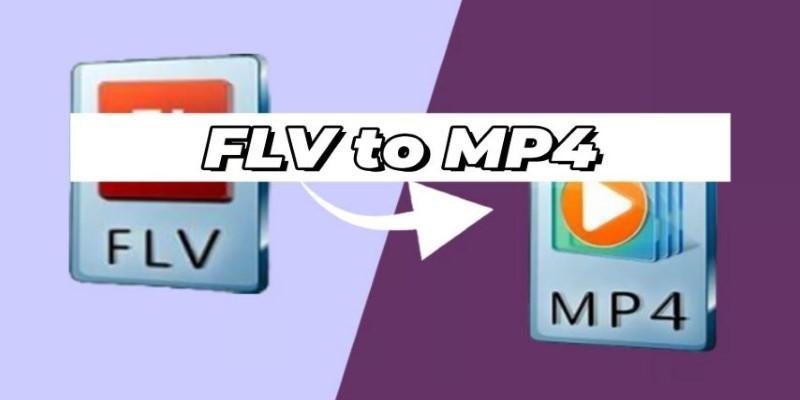
If you’re looking to play FLV on your iPhone, read on. FLV files aren’t supported by iPhones out of the box, so you aren’t alone. But don’t be concerned, you can easily get them into playable formats. Here, we recommend excellent ways to create FLV files that are compatible with your iPhone, whether you want to use a free tool or pay for one. Find out what you should look for in a converter and get suggestions for an easy, hassle-free experience.
Why Can’t iPhones Play FLV Files?
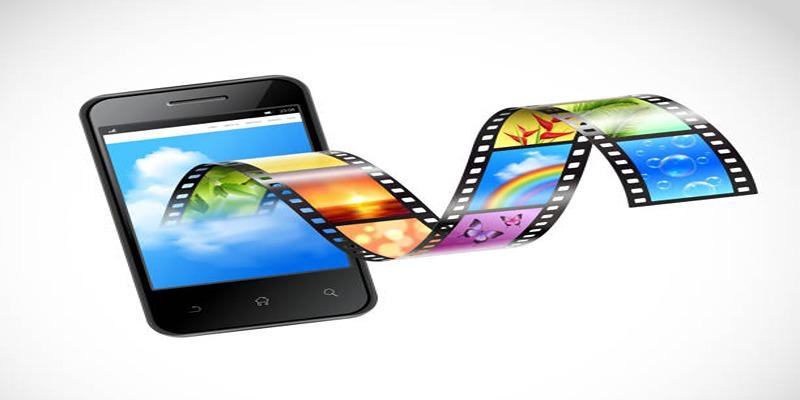
The FLV (Flash Video) format was designed for Adobe Flash Player and is commonly used for online streaming. However, iPhones, iPads, and most modern Apple devices don’t support the Flash architecture. Instead, Apple’s ecosystem favors formats like MP4, MOV, and M4V for audio-visual content.
This limitation means that if you try to load or stream an FLV file on your iPhone, you’ll be met with an error or an unresponsive screen. The only solution is to convert FLV files to a compatible format.
What to Look for in an FLV to iPhone Converter
Not all video converters are created equal. When choosing a tool to convert FLV for iPhone, consider these factors:
- Supported Output Formats: Make sure the converter can produce formats like MP4, M4V, or MOV, which work seamlessly on iOS devices.
- Conversion Speed: A good converter will process files quickly without sacrificing quality.
- Quality Preservation: Look for tools that retain video and audio quality during the conversion.
- Batch Conversion: If you have lots of FLV files, batch processing saves time.
- User Interface: Intuitive design matters, especially for beginners.
- Price and Licensing: Both free and premium options exist. Free tools are great for occasional use, while paid solutions usually offer advanced features and better performance.
Free FLV to iPhone Converters Worth Trying
VLC Media Player
VLC is more than just an all-purpose media player; it’s also a reliable video converter. This open-source tool is available for Windows, macOS, and Linux, and handles most video and audio formats.
How to use VLC to convert FLV for iPhone
- Download and launch VLC.
- Go to ‘Media’ > ‘Convert/Save’.
- Add your FLV file, select ‘Convert’, and choose MP4 or MOV as the output format.
- Start the conversion and transfer the new file to your iPhone via iTunes, AirDrop, or cloud storage.
Pros:
- Free and open-source
- No ads or watermarks
- Supports nearly all file types
Cons:
- Interface may seem technical to some users
- Slower conversions for larger files
HandBrake
HandBrake is a powerful, open-source transcoder built for speed and flexibility. It supports batch conversion and custom settings, making it a favorite among power users.
How to use HandBrake
- Download and install HandBrake.
- Open your FLV file.
- Select a preset optimized for iPhone, such as “Fast 720p30” or “Apple 1080p30.”
- Adjust settings if desired and start the conversion.
- Transfer the converted file to your iPhone.
Pros:
- Advanced customization
- Free and ad-free
- Presets for iOS devices
- Batch conversion
Cons:
- Learning curve for beginners
- Interface can feel overwhelming
CloudConvert
Prefer to skip installations and do everything online? CloudConvert works in your browser, letting you upload FLV files and convert them to MP4, MOV, or M4V.
How to use CloudConvert
- Visit cloudconvert.com.
- Upload your FLV file.
- Choose your output format (MP4/MOV).
- Click "Convert" and download the result.
Pros:
- No software download required
- Compatible across devices
- Fast for smaller files
Cons:
- File size limits on free plan
- Internet connection required
- May pose privacy concerns for sensitive files
Paid Tools and Premium Solutions
Free tools are excellent, but paid FLV to iPhone converters go a step further, offering better speed, more control, and premium support.
Movavi Video Converter
Movavi Video Converter stands out for its balance between usability and features. Its sleek interface and fast conversion make it a favorite for occasional and regular users alike.
Key Features:
- Supports over 180 file formats
- Device presets for all iPhone models
- Lightning-fast conversion with SuperSpeed mode
- Basic editing tools (trim, crop, rotate)
- Batch conversions
How to use Movavi
- Download and install Movavi Video Converter.
- Import your FLV file.
- Select your iPhone model as the target device.
- Convert and transfer the file to your iPhone.
Pricing:
- Free trial available (limited features)
- Paid version unlocks all features and removes limits
Wondershare UniConverter
Wondershare UniConverter offers a feature-rich environment for managing your media files. Beyond simple conversions, it can burn DVDs, compress videos, and edit metadata.
Key Features:
- Device-optimized presets
- Batch conversions
- High-speed processing
- Built-in editor
- Video compression and streaming
Pricing:
- Free version with basic functionality
- Premium plans unlock full features
Any Video Converter (AVC)
Any Video Converter is another robust solution that balances speed and features.
Key Features:
- Converts FLV to MP4 and MOV
- Supports a wide range of devices
- User-friendly interface
- Includes video editing tools
How to Use Any Video Converter
- Install and launch Any Video Converter.
- Click on "Add Video" to import your FLV files.
- Select MP4 or MOV as the output format from the dropdown menu.
- Adjust settings or apply edits if needed.
- Click "Convert Now" to start the conversion process.
Pricing:
- Free version with basic features
- Ultimate edition unlocks advanced options
Mobile Apps for On-the-Go Conversion
If you often need to convert videos while away from your computer, consider mobile apps. While many iOS apps have limitations due to App Store policies, some stand out.
Video Converter App
Multiple video converter apps now offer FLV to MP4 conversion right from your iPhone. Search "Video Converter" on the App Store and check reviews for reliability and ease of use.
Tips:
- Watch for ads or watermarks in free versions
- Beware of subscriptions you didn’t intend to purchase
- Confirm that privacy is protected before uploading personal files
Tips for Smooth FLV to MP4 Conversion
- Always check your output settings to match your iPhone’s native resolution for the best viewing experience.
- Backup your original FLV files before converting, especially when using new tools.
- Test the converted file on your iPhone before deleting the original.
- Batch convert if you have multiple files to save time.
- Explore basic editing features like trimming or cropping to enhance your videos.
Final Thoughts
Converting FLV files for your iPhone doesn’t need to be a technical challenge. With tools like VLC, HandBrake, and Movavi, you can transform unsupported videos into formats that play perfectly on any Apple device. Explore both free and premium options. Test a few to see which interface and features work for you. The next time you come across an FLV file you want to watch on your iPhone, you’ll be ready. Happy converting!