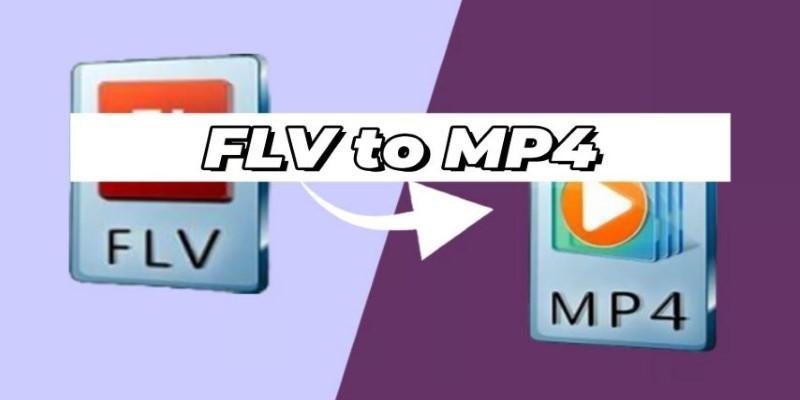
You download an old video, and it’s in FLV format. You double-click it, and your media player just shrugs. Nothing plays. FLV used to be a standard for streaming video online, especially back when Flash was everywhere. But now, most platforms have moved on, and FLV support has faded. MP4 has taken over because it works almost everywhere — from phones to smart TVs to editing software.
So, if you've got FLV files that you want to actually use, converting them to MP4 makes sense. But you don’t want a low-quality mess. You want to keep the same sharpness, sound clarity, and sync — just in a format that actually works. Here’s how to convert FLV to MP4 for more player support without losing quality.
How to Convert FLV to MP4 Without Losing Quality?
Using VLC Media Player
VLC isn’t just a media player. It also doubles as a basic video converter. And the best part? It's free, open-source, and works on all major platforms.
Here’s how to do it:
- Open VLC, go to “Media” > “Convert / Save”.
- Click “Add” to load your FLV file.
- Hit “Convert / Save”.
- Under “Profile”, choose “Video - H.264 + MP3 (MP4)”.
- Click on the wrench icon to adjust settings as needed (such as resolution or bit rate).
- Choose the destination file and click “Start”.
VLC is reliable, but don’t expect fancy batch conversion or GPU acceleration. It’s good for quick one-offs where quality needs to stay decent, but speed isn't critical.
Using HandBrake

HandBrake is another free and open-source tool that offers more control over video quality, resolution, bitrate, and encoding methods. It's built for people who care about file size and visual quality.
Here’s the process:
- Open HandBrake and load the FLV file.
- Choose MP4 as the format.
- Use the “Constant Quality” slider — setting it to 20 or less gives you better quality.
- Choose H.264 or H.265 codec.
- Set audio codec to AAC for compatibility.
- Hit “Start Encode”.
HandBrake is slower than some tools because it focuses on quality. If you’re converting videos you plan to keep long-term or edit later, this is a solid choice.
Using FFmpeg (Command-Line Tool)
If you’re not afraid of typing a few commands, FFmpeg gives you complete control and the best output. It’s a command-line tool that professionals use, and it handles pretty much any format.
Install FFmpeg, then use this command:
ffmpeg -i input.flv -c:v libx264 -crf 23 -preset medium -c:a aac output.mp4
- -c:v libx264 sets the video codec to H.264.
- -crf 23 controls quality (lower number = better quality).
- -preset medium balances speed and compression.
- -c:a aac sets audio to a widely supported format.
You can adjust the CRF value down to 18 or 20 for higher quality. FFmpeg is great for batch conversions, scripting, and automation. Just not ideal if you want a graphical interface.
Using Online Video Converters
If you’re not into downloading software, online converters are quick and easy. Sites like CloudConvert, Zamzar, or Convertio let you upload an FLV file and convert it to MP4 directly in your browser.
Steps are usually:
- Visit the site.
- Upload the FLV file.
- Choose MP4 as the output format.
- Wait for the file to upload, process, and convert.
- Download the MP4 file.
The downside? You need a good internet connection, especially for large files. Some services limit file size or offer lower resolution unless you pay. It’s convenient, but don’t expect full control over quality settings.
Using Desktop Converters Like WinX HD Video Converter
If you prefer a dedicated software with a user interface, WinX HD Video Converter is one of the better-known desktop tools. It supports hardware acceleration, which makes the process fast, and keeps high-quality output.
How it works:
- Install and open the program.
- Drag and drop your FLV file.
- Choose “MP4 Video” as the output.
- You can customize resolution, codec, frame rate, and bitrate.
- Click “Run” to convert.
It’s built for users who want speed and flexibility without the command line. You don’t need to worry about the technical side of encoding unless you want to dig into it.
The free version works well, but full features require a license. Worth it if you’re doing a lot of video conversion and care about quality retention.
Using Adobe Media Encoder
For those working in creative fields, Adobe Media Encoder is part of the Adobe suite and is tightly integrated with Premiere Pro and After Effects. It’s designed for batch processing and professional output.
Steps:
- Import the FLV file into the queue.
- Choose H.264 format and pick a preset like “Match Source – High Bitrate”.
- Adjust bitrate settings to ensure high quality (10,000 kbps or higher for HD).
- Set your output destination and start the queue.
It's not free, but if you already have an Adobe subscription, it's one of the best tools for high-quality MP4 output. Colour, compression, and resolution stay intact, and it's fast with GPU acceleration.
Using Movavi Video Converter
Movavi is a paid tool, but it offers a clean interface and handles conversions quickly with solid quality. It’s designed for everyday users who don’t want to mess with complex settings but still want good results. It supports GPU acceleration and lets you tweak video settings like resolution, codec, bitrate, and frame rate.
Here’s how to use it:
- Install and launch Movavi Video Converter.
- Click “Add Media” > “Add Video” and choose your FLV file.
- In the bottom panel, select MP4 under the “Video” tab.
- Click the gear icon to adjust quality settings, codec (H.264), and audio format (AAC).
- Choose the output folder and hit “Convert”.
Movavi handles large files well, keeps audio and video synced, and is easy for beginners. The free trial adds a watermark, but the full version unlocks batch conversion and better quality.
Conclusion
Converting FLV to MP4 helps ensure your videos play smoothly across devices and apps. Whether you choose a free tool like VLC, a powerful option like FFmpeg, or a user-friendly converter like Movavi, the goal stays the same—better compatibility without losing quality. Pick based on what fits your needs. Once converted, your videos will be easier to manage, watch, and share without running into playback issues or unsupported formats.