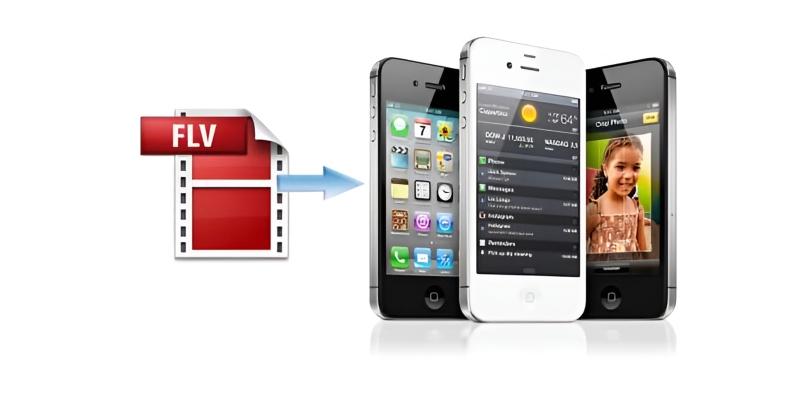
Trying to watch an old FLV video on your iPhone usually ends with disappointment. The screen stays blank, or the video won’t load at all. That’s because FLV (Flash Video) is a format once popular on the web but isn’t supported on iPhones. Apple prefers MP4, which is lighter, more versatile, and designed to play smoothly on all their devices.
If you have a collection of FLV files and want to view them on your iPhone without frustration, conversion is the only way forward. The good news? It’s easier than you might think. With the right tools, you can turn those unplayable clips into something your iPhone will handle with no trouble.
Top 9 Best Ways to Convert FLV Video to iPhone MP4
HandBrake
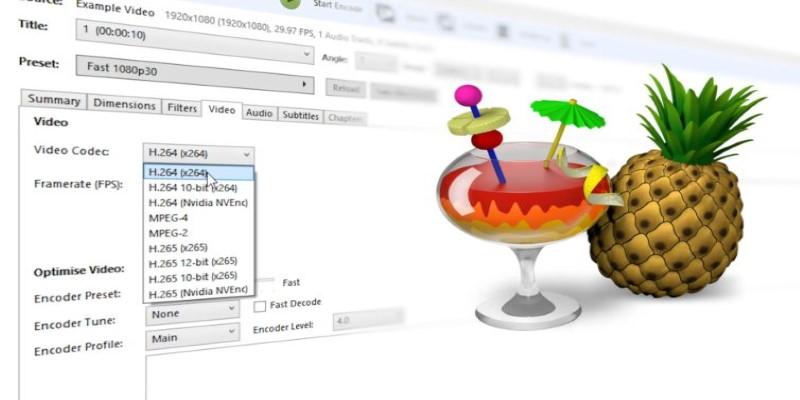
HandBrake is free, open-source, and available for both Mac and Windows. It's been a favourite for years for a good reason—it just works. You don't need to be an expert to convert FLV to MP4 with HandBrake. After installing it, you drag in your FLV file, select MP4 as the format, pick a preset (like "iPhone" or "Fast 1080p30"), and click "Start." HandBrake will take care of the rest. The final video plays fine on iPhones and retains decent quality. The only thing to keep in mind is that the interface can feel a bit old-school, but once you get the hang of it, it becomes second nature.
- VLC Media Player
Most people know VLC as a media player, but it also has a hidden feature: video conversion. VLC works on almost every platform and supports a wide range of formats. To convert FLV to MP4, open VLC, go to Media > Convert/Save, add your FLV file, and then choose "Convert." Under the profile settings, pick an MP4 output format. You can tweak bitrate, resolution, and audio settings, but the default usually works well for iPhones. The speed isn't lightning-fast, but if you already use VLC, you don't need to install anything extra.
Any Video Converter (AVC)
Any Video Converter offers a straightforward experience. There’s a free version with enough features for basic conversion, including support for FLV to MP4. Once installed, you drag and drop your video, choose “MP4” as the output, and select an iPhone preset. It includes options for resolution, aspect ratio, and frame rate, making it easy to match your specific iPhone model. The interface is simple enough for casual users, but it also includes extras like trimming and cropping. Be careful during installation—some versions of the free software come with bundled offers, so click carefully.
CloudConvert (Online)
If you’d rather not download anything, CloudConvert is a solid choice. It’s a web-based converter that handles FLV to MP4 without fuss. You upload your file (or import it from Google Drive or Dropbox), pick MP4 as the output, and start the conversion. Once done, the MP4 file is ready for download. CloudConvert works directly in your browser, so there’s no software setup. The downside is that large videos may take a while to upload and process. Also, the free tier has a limit on how many conversions you can do per day.
Zamzar (Online)
Zamzar is another browser-based tool. It’s simple and doesn’t overload you with settings. You upload your FLV file, pick MP4, and enter your email address. Zamzar converts the file and sends you a download link. While it’s handy for quick conversions, file size limits apply unless you go for a paid plan. The process is slower than desktop apps, especially with big files. Still, for occasional use, it’s dependable and easy to use.
iConv (iOS App)
If you don’t want to touch a computer at all, you can try iConv, a video converter app available on the App Store. It supports various formats, including FLV, and can convert directly to MP4 on your iPhone. After installing the app, you import your FLV video from Files or another storage app, choose MP4, and wait for the process to complete. It won’t be as fast as a computer-based conversion, but it works in a pinch—especially for short clips. Just make sure your phone has enough space and battery before starting.
FFmpeg (For Advanced Users)
FFmpeg isn’t for everyone. It’s a command-line tool that gives you complete control over video conversion, but you’ll need to be comfortable typing commands. After installing FFmpeg, you can convert an FLV video to MP4 using a simple line like:
ffmpeg -i input.flv -c:v libx264 -c:a aac output.mp4
This tells FFmpeg to convert the video using a codec that works well with iPhones. The benefit of FFmpeg is speed, flexibility, and control over every aspect of the video. But if typing commands isn’t your thing, you’ll be better off with a graphical tool.
Movavi Video Converter
Movavi isn’t free, but it offers a polished experience. It supports FLV to MP4 conversion with presets tailored for iPhones. Drag your file in, pick your target device, and click convert. It also allows you to adjust resolution, trim clips, or merge multiple videos. The speed is solid, and the interface is cleaner than most other tools. It’s a good choice if you often convert videos and want something stable and easy to use.
Freemake Video Converter
Freemake is a Windows-only option with a simple interface and support for many formats. You can import FLV files, choose MP4 as the output, and then select a preset for iPhone. The software guides you through the process without making it complicated. The only drawback is that the free version adds a watermark to the final video. To remove that, you'll need the paid version. Still, for a basic conversion, it gets the job done.
Conclusion
Converting FLV videos to MP4 for iPhone is simple with the right tool. Whether you use a desktop app, online service, or mobile solution, each option helps make your files compatible. Choose based on speed, convenience, and how often you need to convert. Once done, your videos will play smoothly on your iPhone without errors or delays. It’s a quick fix that opens up access to older, unsupported video formats.